.webp)
How can I set up, run, and manage Docker containers for my home lab in a clean, reliable way?
A clean home lab is less about “more containers,” and more about having one repeatable way to run them. Think of it like labeling every tube on a bench. You can still move fast, but you never lose track of what’s what.
Before you start, define what “reliable” means for you. In most home labs, it means easy rebuilds, safe updates, clear logs, and backups that actually restore.
Why use Docker in your home lab?
Docker is great when you want neat boxes for each service, without each service spilling into the others. That isolation makes upgrades and experiments less risky, because you can roll back one container without rolling back your whole host.
Portability is the second win. If you can run the same Compose file on your laptop and on a mini-server, you cut down “it worked yesterday” debugging.
Efficiency matters too. Containers share the host kernel, so they are usually lighter than full VMs for the same job. Scalability is real, but it can also become a trap, because many home labs do fine with Docker Compose and only need Kubernetes when they truly want multi-node scheduling and advanced rollout patterns.
Set up your home lab environment
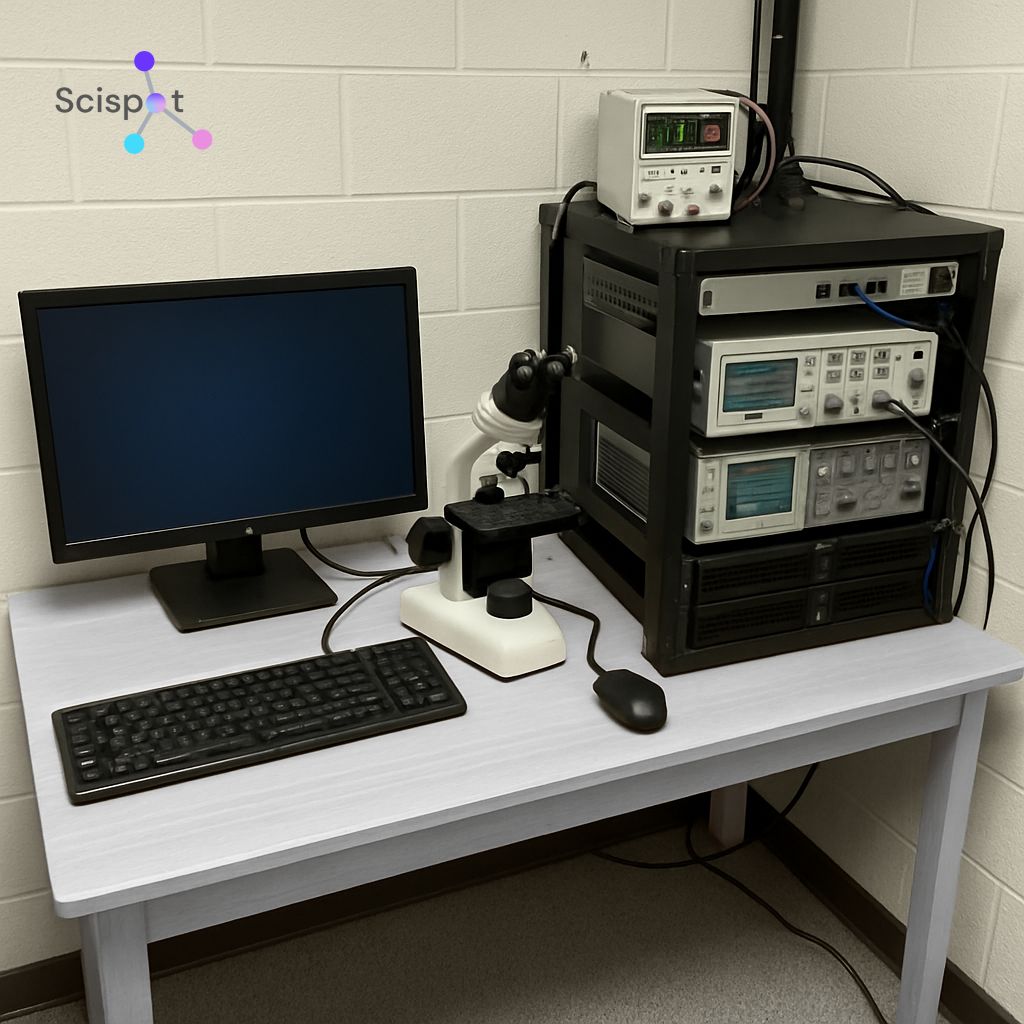
Start with one stable host. A small Linux box is often the cleanest, because updates and networking are simpler, and troubleshooting is usually more direct.
Create a single “home lab” folder as your control center. Inside it, keep one folder per stack like monitoring/, media/, and dev/, plus a shared folder for TLS certs, config templates, and backups. Put this folder in Git, because if you can’t diff it, you can’t trust it.
Install Docker and Compose
Install Docker Engine on Linux, or Docker Desktop on Windows and macOS. Then confirm the CLI works using docker --version, and confirm Compose is available on the system.
Compose is what makes multi-container systems feel like “one command, one system.” It also reduces drift, because you stop creating one-off containers by hand, and instead bring everything up from a known file.
Basic Docker commands you’ll actually use
You’ll still use core Docker commands. docker ps helps you see what is running, and docker logs helps you debug fast when something starts behaving oddly.
In daily life, once you adopt Compose, you’ll lean on docker compose up -d, docker compose logs -f, and docker compose down. That pattern is a big reason Compose feels clean for home labs, because you stop managing containers as separate pets and start managing them as one stack.
Best Docker images for a home lab
If your goal is a practical home lab, build around a few “anchor” services. A reverse proxy is one anchor, because it gives you clean URLs and a single place to manage ports. Monitoring is another anchor, because it gives you visibility when things break. Backups are the anchor most people skip until they lose data.
From there, add services based on what you want to learn. A web server is useful for hosting dashboards or landing pages. A database is helpful for apps that need persistence. A CMS teaches you upgrades and storage. A CI tool teaches you automation. A home automation hub teaches you device discovery and network trust boundaries.
Manage Docker containers cleanly
Clean management comes from repeatable habits. The goal is fewer “snowflake” containers, and more stacks you can rebuild on demand without guessing what you did last month.
.jpg.webp)
Use Docker Compose as your default
Compose should be your default for anything beyond one container, because it lets you define services, networks, and volumes in one place. It also helps you avoid “mystery config,” where settings exist only in a one-off command you ran once and forgot.
Startup order is one reason Compose improves reliability, but the bigger reason is “ready vs running.” A database container can be “running” while still not ready for connections, so your app starts and fails. Health checks help you avoid that, because they let your app wait until the dependency is actually healthy.
Monitoring and logging
You want one place to look when things break. Start simple by getting comfortable reading container logs per service. That alone cuts troubleshooting time a lot. Once you have more than a handful of services, add metrics and dashboards. Charts and alerts become valuable when you want to spot slow creep issues, like memory pressure or disk fill, before they become outages.
Networking and security
Keep networking boring. One internal network for most services is usually enough, and it keeps your setup understandable when you return to it after a few weeks away.
Expose as few ports as possible. Only publish what you truly want reachable from your LAN, and keep databases internal so only your apps can access them. If you add a container UI, lock it down, because admin UIs can become an easy target if they are left open on a network.
Home lab project ideas
Pick projects that teach one new skill at a time. That keeps your home lab from turning into a messy “everything server” where you don’t know what depends on what.
A personal website is a strong start, because it teaches reverse proxy, TLS, volumes, and safe deploys. Home automation teaches discovery and trust boundaries. CI teaches secrets handling, build caching, and log hygiene. Data collection plus visualization teaches a full loop, because you ingest data, store it, and make it readable.

Docker networking for beginners
Docker networking is easier if you picture rooms in a house. Most containers live in inside rooms, and only a few need front-door access. Those are typically your reverse proxy and maybe one admin UI.
Bridge networks usually cover single-host labs. Host networking can help special cases, but it reduces isolation, so it should be a deliberate choice. Overlay networking matters when you span multiple hosts, which is more common with Swarm or Kubernetes.
If you feel pulled toward Kubernetes early, pause and sanity-check. Kubernetes is powerful, but it adds moving parts and ops overhead that many single-box home labs do not need.
Where Scispot fits if your “home lab” touches real lab work
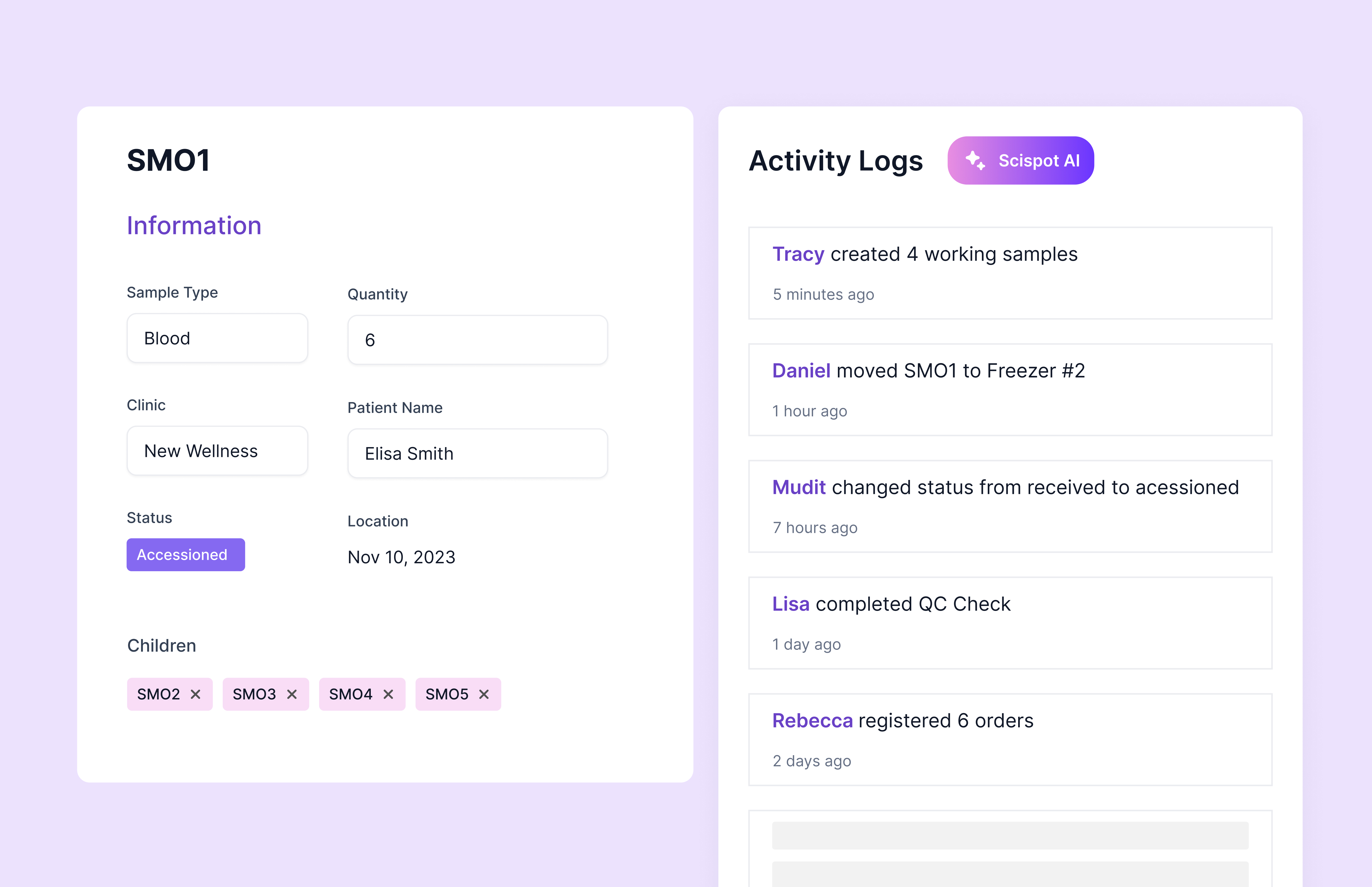
If your home lab is purely IT, Docker and Compose are the main story. If your home lab supports real science work, the gap is usually not compute. The gap is traceability, because you need to know what ran, on which inputs, with which settings, and what came out.
This is where Scispot fits cleanly as the LIMS layer. You can run pipelines in Docker, then push results into structured records in Labsheets, while keeping instrument and system flows moving through GLUE. That matters because a clean lab is not only “it runs.” It is also “we can explain what happened” during review, handoffs, or audits.
A common limitation in older, enterprise-style LIMS tools is change speed. They often rely heavily on services and long delivery cycles for updates, which can slow iteration for small teams. Another common trap is deep customization, because heavy custom code can make upgrades harder and increase testing effort every time something changes.
Scispot is built to reduce that friction. It is designed around configurable data models, workflow automation, integrations, and compliance-friendly controls, while keeping the day-to-day UX usable for scientists.
.gif)
Conclusion
A reliable Docker home lab is built like a tidy kitchen. Same tools in the same drawers, and the same recipe every time, so you can rebuild quickly when something breaks. Use Compose to make repeatable the default, and add health checks and restart policies to reduce flaky downtime. Keep networking simple, and expose only what you need.
If your setup supports real scientific workflows, Scispot can sit on top as the system of record. Docker runs the compute. Scispot keeps samples, runs, files, results, and approvals tied together in structured records, so traceability and review stay intact even when containers change.